Move a lead through the pipeline
The pipeline is a kanban board with admin-configured stages (e.g. New → Qualified → Proposal → Won / Lost). Each stage has a default close probability that drives the forecast.
Goal
Move an existing lead from one stage to another, optionally updating its value or close probability inline.
Prerequisites
- A lead exists on the active pipeline.
- You're either the lead's assignee or have edit-all permission.
Steps
1. Open the Pipeline view
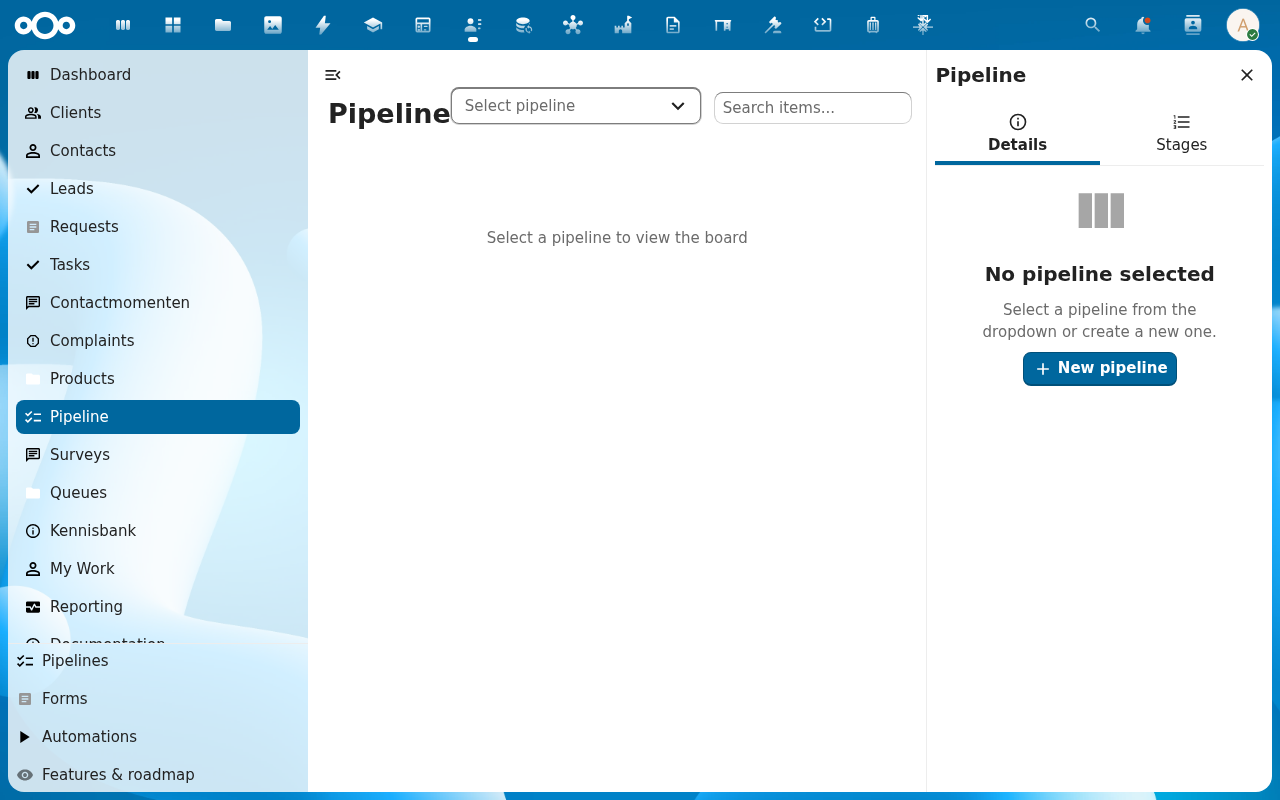
2. Find the lead card you want to move
The filter chips above the columns let you narrow by Assignee, Pipeline, Source, or Tag. The search field at the top right matches lead titles. Columns sort newest-first by default; click the column header to flip the sort, or use the Actions → Sort by menu for value or close-date ordering.
3. Drag the card to the target stage
The drop highlights the target column. Release to commit. The lead's stage, close probability, and last-modified timestamp update immediately.
4. Edit value or probability inline (optional)
Click the value or probability on the card to edit without leaving the board.
Verification
- The lead is in the new column.
- The forecast at the top of the board updates to reflect the change.
- The lead's history tab logs the stage change with timestamp + your username.
Common issues
| Symptom | Fix |
|---|---|
| Card snaps back after drop | Stage transition rejected by a workflow rule. Check the lead's history for the error. |
| Card not visible on the board | Filtered out. Clear filters or check your assignee filter. |