Log an interaction
A contact moment is one entry in a client's interaction history. Calls, emails, visits, demos: anything worth remembering.
Goal
Log a contact moment on a client and verify it lands on the client's timeline.
Prerequisites
- The client (person or organisation) already exists.
Steps
1. Open the client's detail page
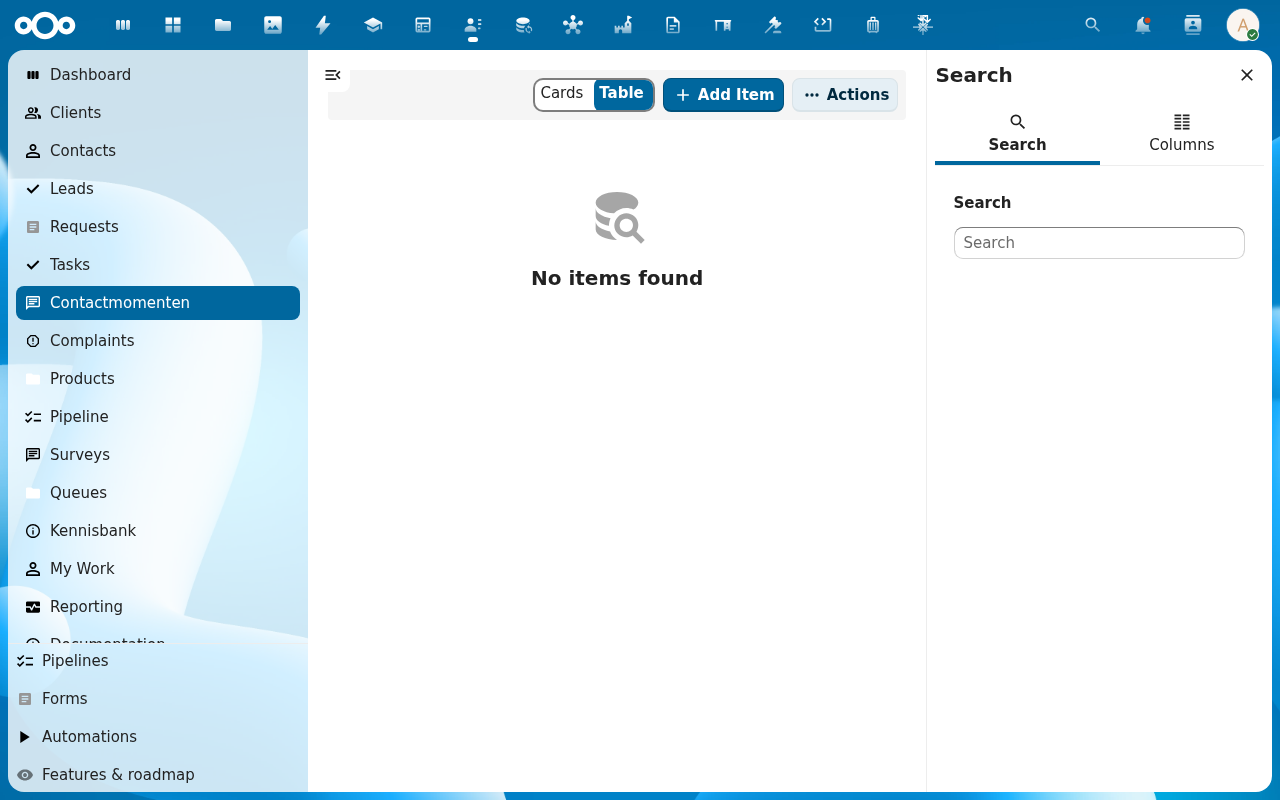
2. Click + Add Item on the Contactmomenten tab
The client detail page's sidebar has a Contactmomenten tab; the create button on that tab is the standard Add Item action.
3. Pick the type
The shipped types are Call (inbound), Call (outbound), Email, Meeting, Visit, Video call, Chat, Note. Admins add or retire types per channel under Administration settings → Pipelinq → Request Channels.
4. Fill in the details
- Date: defaults to now.
- Subject: short summary.
- Notes: free-form body.
- Linked lead / request: optional; surfaces the moment on those records too.
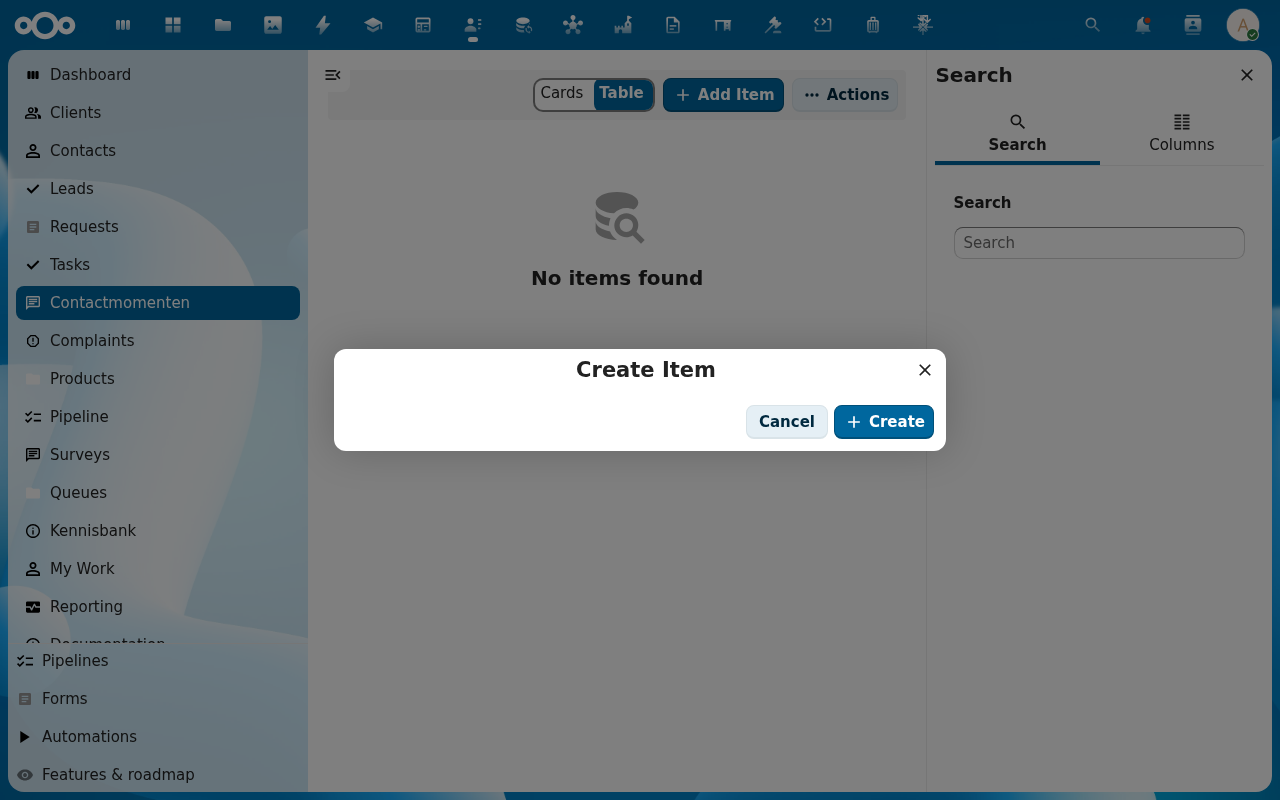
5. Save
The moment appears at the top of the client's timeline.
Verification
- The moment is on the client's timeline with the right type icon.
- If you linked a lead/request, the moment also shows there.
- The history tab logs the create event.
Common issues
| Symptom | Fix |
|---|---|
| Type list is empty | Admin hasn't configured contact-moment types yet. See admin guide. |
| Moment doesn't show on linked lead | Reload the lead. The timeline cache refreshes only on next view. |