Ring up a sale at the Point of Sale
Pipelinq's Point of Sale (POS) turns the CRM into a working till. You build a transaction line by line from the product catalog, take payment, print or e-mail the receipt, and — at the end of the day — reconcile the cash drawer and close the shift with a Z-report. Every sale is stored as an OpenRegister object, so it shows up in reporting alongside the rest of your customer data.
Goal
Ring up a customer at the till: start a new transaction, add product lines, take payment, and know where the receipt, returns, and cash-drawer tools live.
Prerequisites
- An admin has enabled the Point of Sale feature and it appears as a section in the left navigation.
- The product catalog holds at least one product with a price and VAT class (see the Products list under Product catalog).
- At least one tender type (payment method) is configured under Point of Sale → POS betaalmethoden.
Steps
1. Open the till
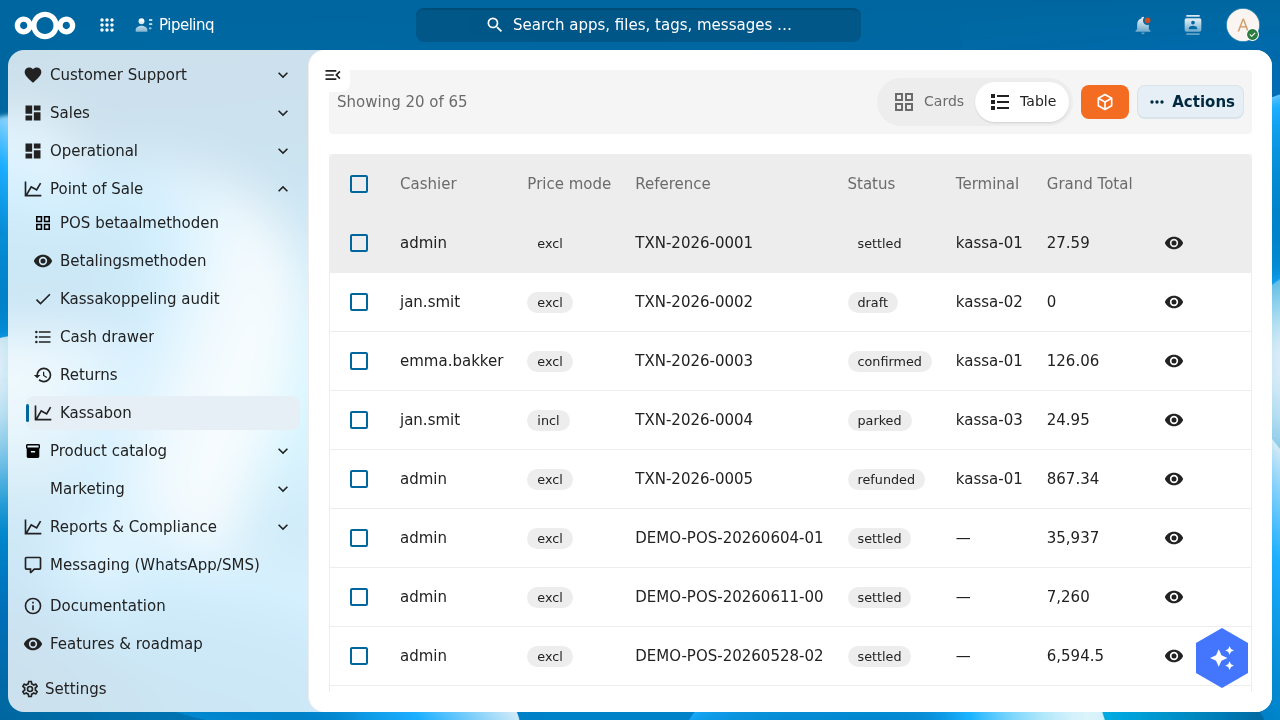
Expand the Point of Sale section in the left navigation and open Kassabon — the list of transactions. Each row shows the Cashier, Price mode (excl./incl. VAT), Reference, Status (draft, parked, confirmed, settled, refunded), Terminal, and Grand Total.
2. Start a new transaction
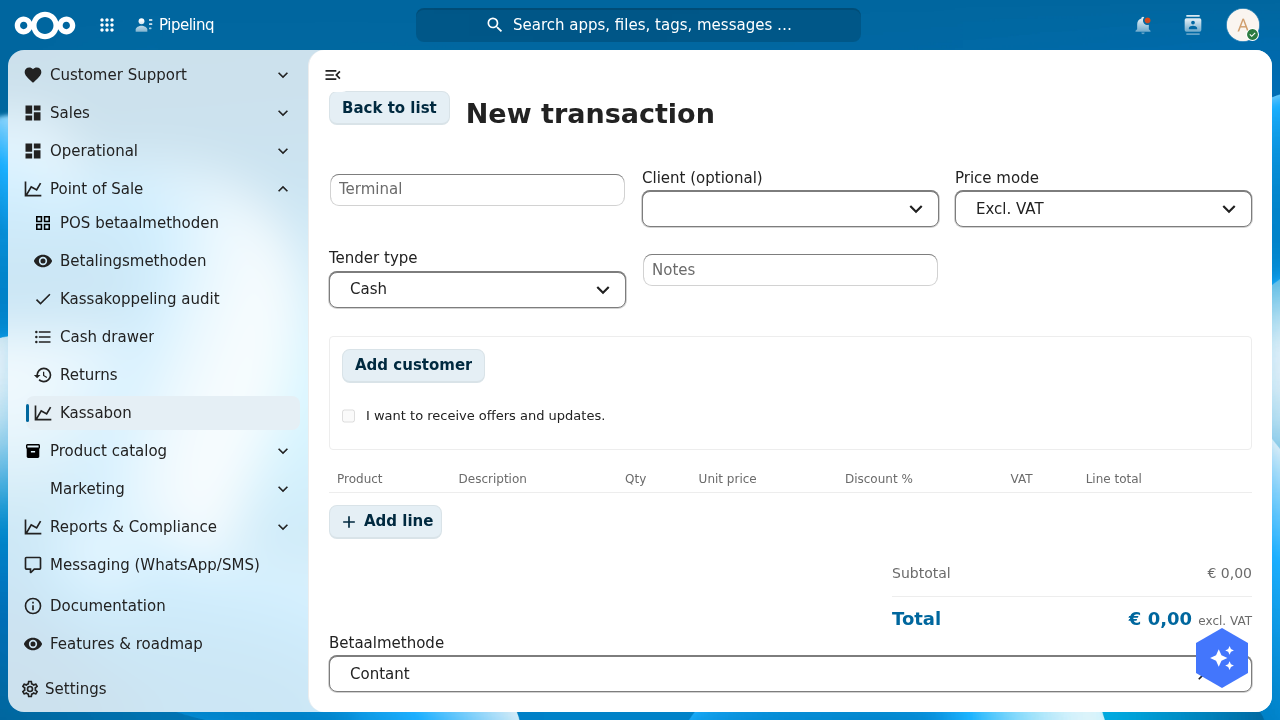
Click New transaction (or open /pos/new). The register screen opens with a header for the sale and an empty line-item table:
- Terminal — the till/terminal identifier (e.g.
kassa-01). - Client (optional) — link the sale to a CRM client, or leave it anonymous.
- Price mode — whether the prices you enter are Excl. VAT or Incl. VAT.
- Tender type — the headline payment method (Cash, Card, …).
3. Add product lines
Click Add line for each item. Each line has Product, Description, Qty, Unit price, Discount %, VAT, and Line total. Pick a product from the catalog and the unit price and VAT class fill in automatically; adjust the quantity or discount as needed. The Subtotal and Total at the bottom update live and show whether the total is excl. or incl. VAT.
4. (Optional) Attach the customer and consent
Use Add customer to link a person to the receipt — needed for on-account payment and for e-mailing the receipt. The "I want to receive offers and updates" checkbox records marketing consent for that customer.
5. Take payment and check out
Choose the payment method for the tender, then click Checkout. Pipelinq settles the transaction, moves it to settled status, and makes the receipt available to print or e-mail. A card/PIN tender hands off to the configured terminal; an on-account tender requires a linked customer.
6. Handle returns, the cash drawer, and end-of-day
The Point of Sale section also holds the day-to-day till tools:
- Returns (
/pos/refunds) — create a refund against an existing transaction, or a standalone return, and record the reason. - Cash drawer (
/pos/shifts) — open a shift, log cash drops and counts, and reconcile over/short differences. - Z-reports — the end-of-day bookkeeping close for a terminal, summarising takings per tender type.
- Kassakoppeling audit — the tamper-evident audit trail of till events (for fiscal compliance).
Verification
- After checkout, the new transaction appears in the Kassabon list with status settled and the correct grand total.
- The line totals sum to the subtotal, and VAT is applied according to the selected Price mode.
- If you linked a client, the sale shows up on that client's history.
Common issues
| Symptom | Fix |
|---|---|
| Checkout stays disabled | Add at least one product line, and — for an on-account tender — link a customer first. |
| The product picker is empty | No products exist yet, or they lack a price. Add them under Product catalog → Products. |
| No tender types to choose from | An admin must define them under Point of Sale → POS betaalmethoden. |
| Totals look wrong | Check the Price mode — entering incl.-VAT prices while the mode is Excl. VAT (or vice-versa) skews the VAT split. |