Capture a request from My Work
The My Work queue is your personal inbox for incoming requests. A request is the lightweight precursor to a lead or a case: it captures intent before you've decided what kind of work it becomes.
Goal
Capture an incoming request and triage it through to either a lead or a closed entry.
Prerequisites
- You have an open My Work queue (default for all users).
Steps
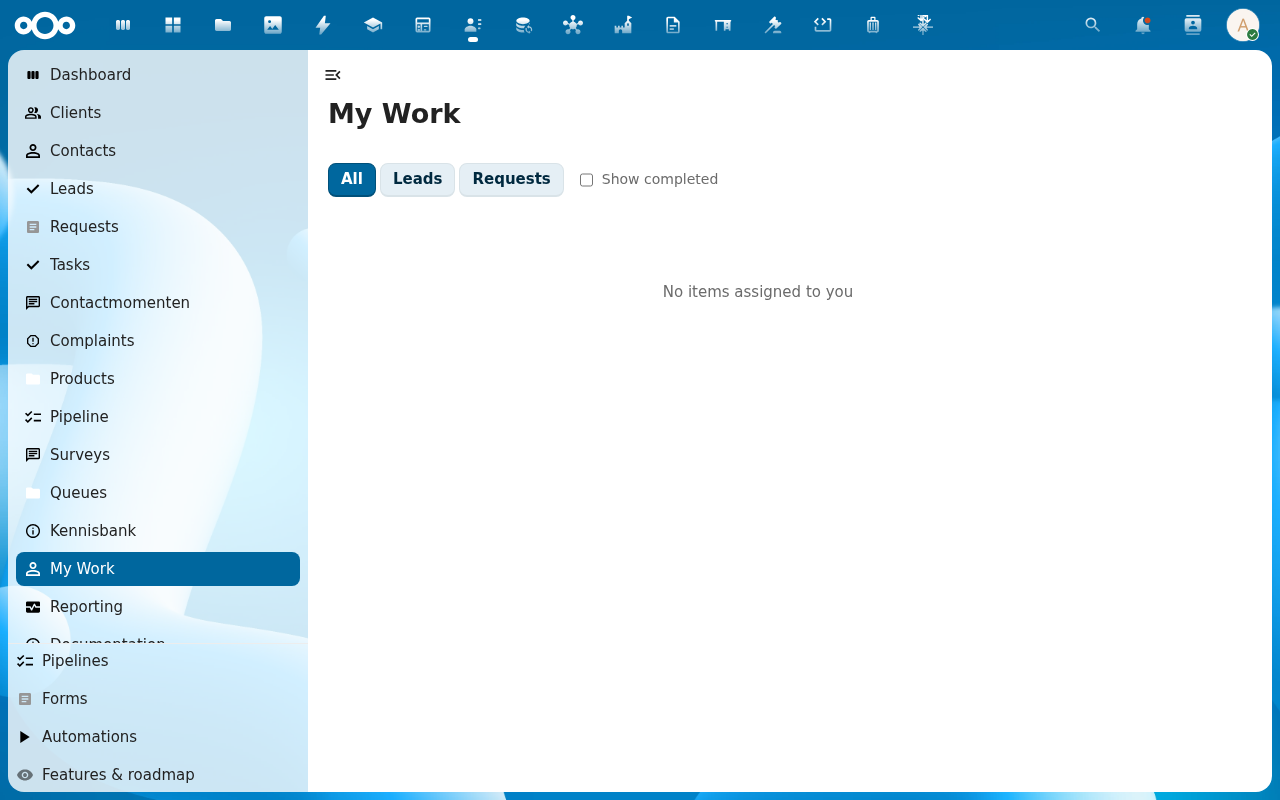
1. Open My Work
The default landing page after first login. The Requests tab is one of the queue tabs.
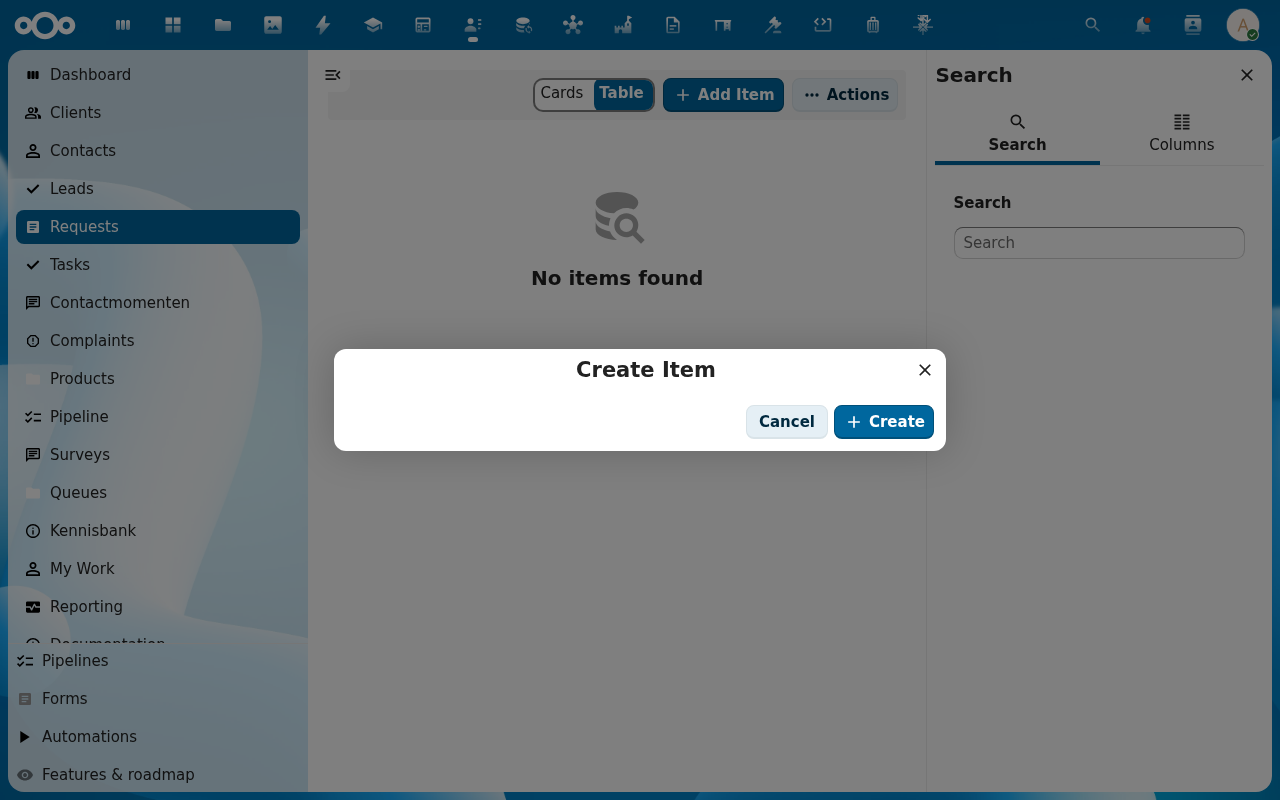
2. Click New Request on the dashboard (or + Add Item in the Requests list)
The Pipelinq dashboard has a quick-action row with New Lead, New Request, New Client buttons. Either entry point opens the request create dialog; the list-view route is Requests → + Add Item.
3. Fill the request form
- Type: admin-configured (info, quote, support, complaint, …).
- From: pick or quick-create a client.
- Subject + Body: the actual content.
4. Save and triage
After save, the request lives in the Requests queue. Triage actions:
- Convert to lead: promotes it to a pipeline lead.
- Close: resolves without further work.
Verification
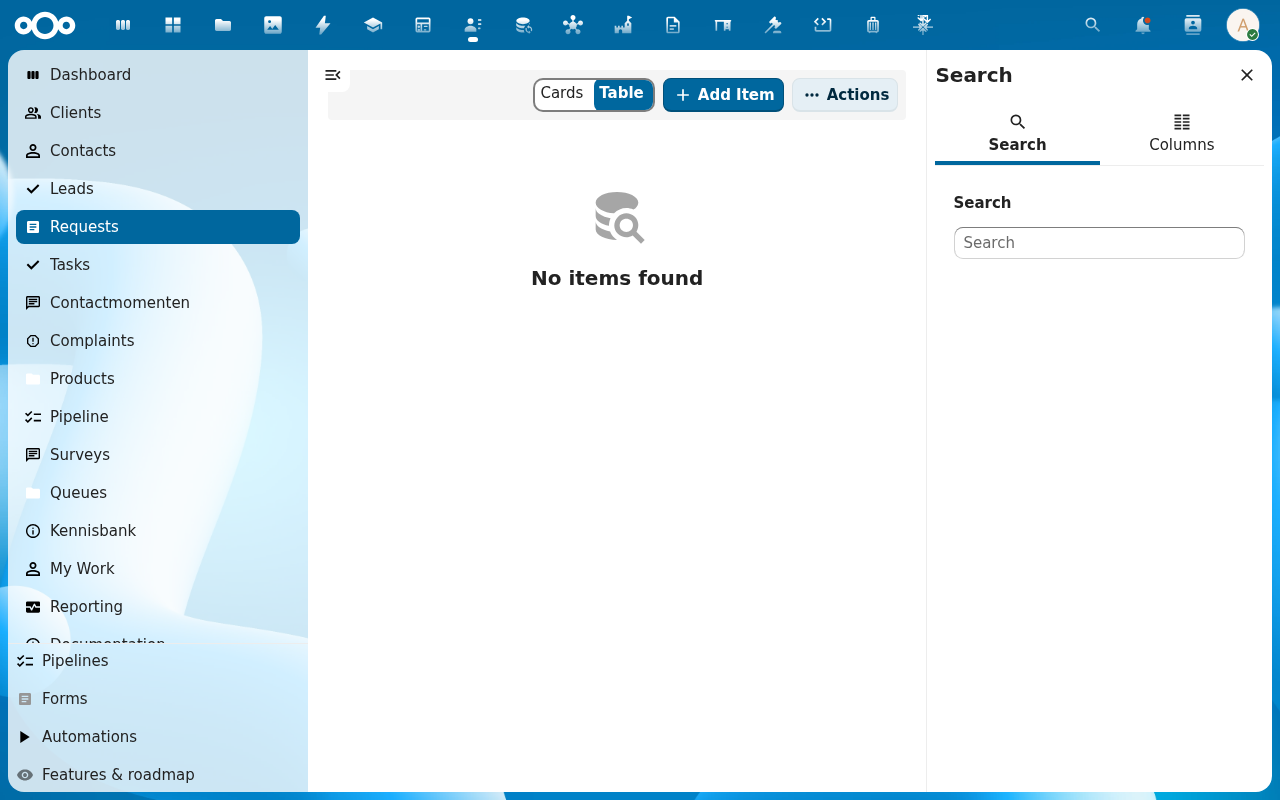
- Request appears in the Requests queue.
- The linked client's history shows the request.
- After convert-to-lead, the new lead appears on the pipeline at the configured initial stage.
Common issues
| Symptom | Fix |
|---|---|
| Type list is empty | Admin hasn't configured request types. See admin guide. |
| Convert-to-lead is greyed out | The request isn't yet linked to a client. Add the From field first. |