Sync with Nextcloud Contacts
Pipelinq clients can sync to and from the native Nextcloud Contacts app. The sync is two-way over CardDAV: adding a contact in Contacts brings it into Pipelinq, and vice versa.
Goal
Configure the contacts sync once, verify two-way propagation works.
Prerequisites
- The Nextcloud Contacts app is installed and enabled on your account.
- You have at least one address book in Contacts.
Steps
1. Open Personal settings → Pipelinq
Top-right avatar menu → Personal settings → in the Personal sidebar pick Pipelinq. (The sync is per-user: every user picks their own address book; admins can also enforce a default under Administration settings → Pipelinq.)
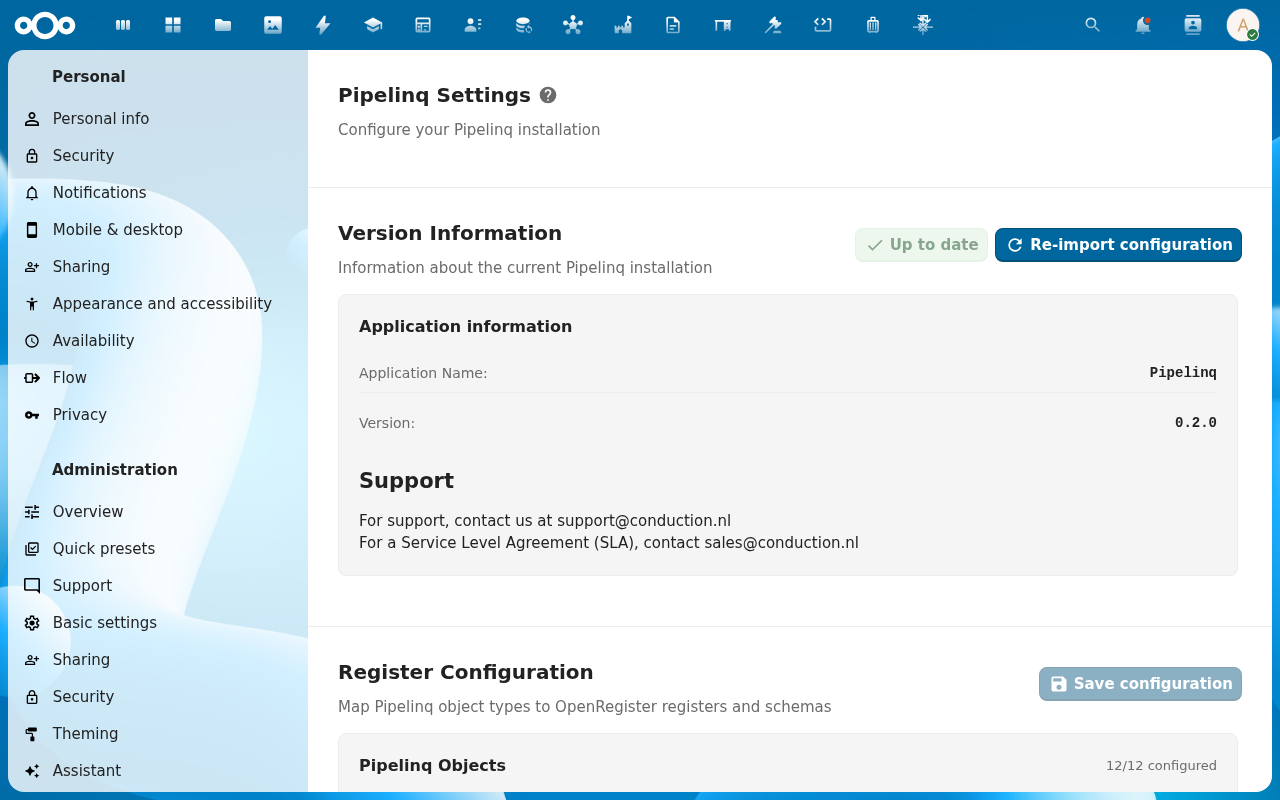
2. Go to Contact sync
3. Pick the address book
The picker lists every Nextcloud address book your account can read: your Contacts personal book plus any shared/system books. Multi-select is supported (sync runs in parallel per book). The default is no sync until you save.
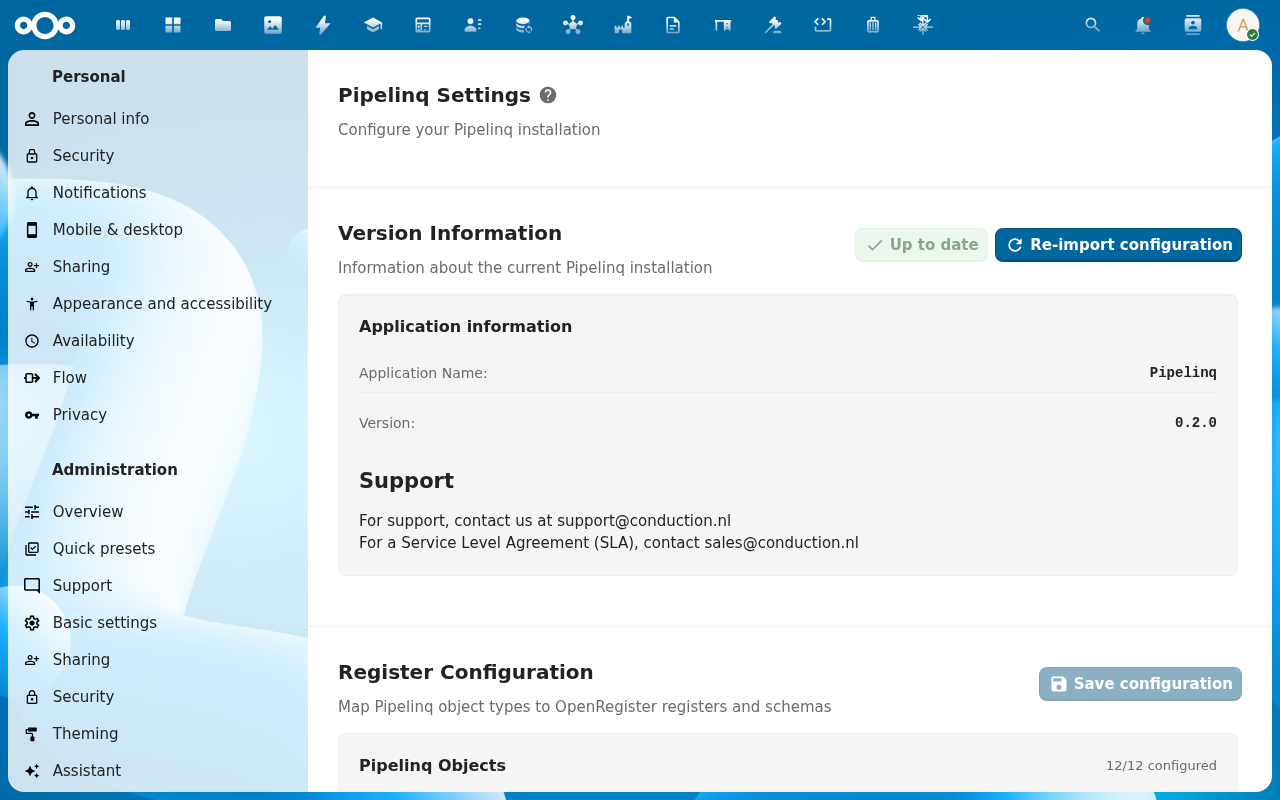
4. Enable two-way sync
Toggle on. Pipelinq immediately fetches the address book and creates a client per contact (matching by email + name).
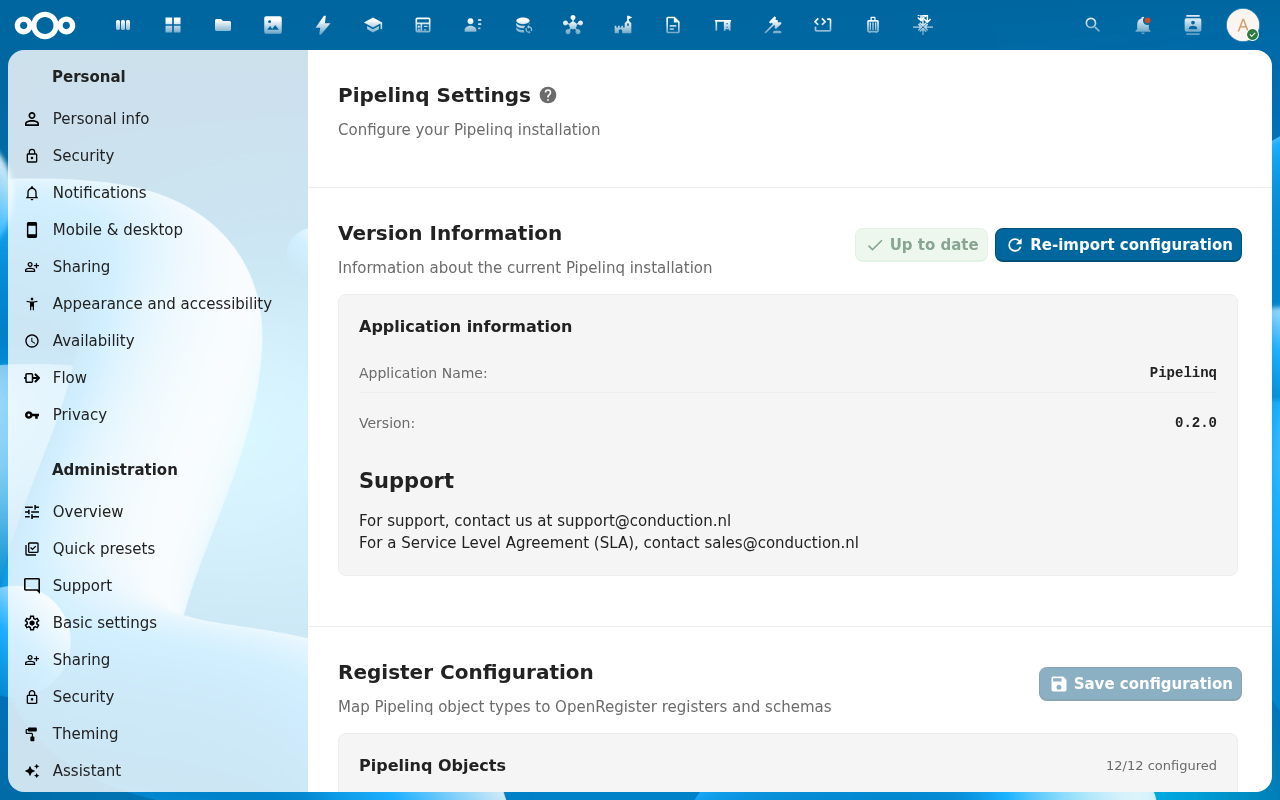
5. Verify propagation
- Add a new contact in Nextcloud Contacts → check it appears in Pipelinq within ~1 minute.
- Add a new client in Pipelinq → check it appears in the Contacts address book.
Verification
- The clients list grows by the count of contacts in the synced address book.
- Bidirectional changes propagate within the configured sync interval.
Common issues
| Symptom | Fix |
|---|---|
| Address book picker is empty | The Nextcloud Contacts app isn't installed for your account. |
| Sync conflict between matching contacts | Resolve via Resolve a duplicate-detection warning. |
| Sync stops after a while | Check Pipelinq's admin settings. There may be a CardDAV rate-limit toggle. |